


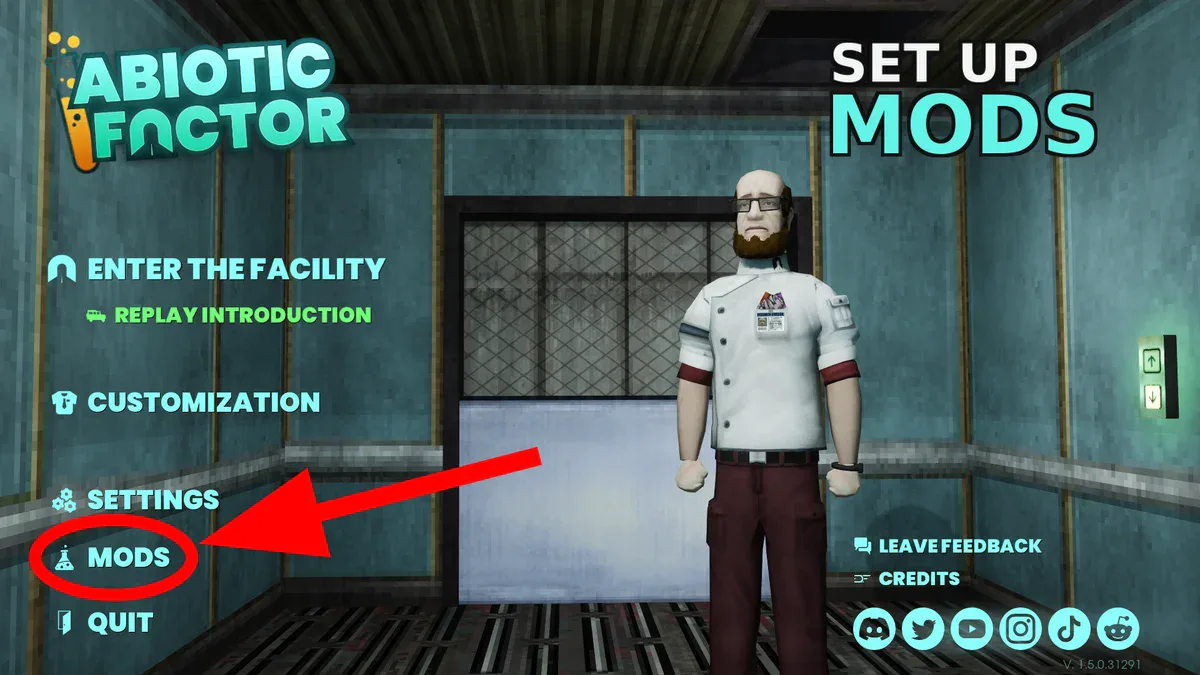


Community Update 5 introduced an official mod system for Abiotic Factor on PC, PlayStation 5, and Xbox Series X|S. Because subscribing to a gameplay mod and enabling it for a world are separate steps, downloaded content will not automatically appear in every save. This guide explains how to set up mods for worlds, co-op sessions, and dedicated servers, as well as how to fix the most common problems.
Key Takeaways
- Subscribe to gameplay mods through MODS, then activate them separately for each world.
- Manage Local Only cosmetics through CUSTOMIZATION → MODS.
- When joining a modded co-op session, the official system downloads the required mods after you confirm the list.
- Dedicated servers receive their mod.io ID list through the
-Modslaunch parameter. - Back up your world before enabling or removing gameplay mods.
Supported Platforms and Existing Worlds
The integrated mod system introduced with version 1.5 is available on PC, PS5, and Xbox Series X|S. Gameplay mods can be assigned to both new and existing worlds, so you do not generally need to restart your progress. Your client, the host, and any dedicated server must use the same up-to-date game version.
Important: Make a recoverable copy of the affected world before changing its gameplay mods. Disabling a mod removes its items and placed objects from the save, and the world may become unstable. Do not overwrite your only working copy after removing a mod.
Playing with official mods is supported across the listed platforms, but creating them is a separate process. The Abiotic Factor Mod Editor is a PC application distributed through the Epic Games Launcher.
How to Subscribe to Gameplay Mods and Activate Them
- Open MODS from the title screen. If prompted, accept the mod.io terms of use before continuing.
- Find the mod you want in the Mod Library and select SUBSCRIBE. This downloads the content. Selecting UNSUBSCRIBE removes the subscription.
- Open Saved Worlds, select the world you want to modify, and open its MODS menu.
- Select each installed mod that should run in that world, then confirm the list with SAVE.
- Host or load the world normally.
The saved selection applies only to that world. Repeat the activation process for every other world in which you want to use the mod. If the library says a mod is downloaded but its content does not appear, check the saved mod list for that specific world first.
Modified items and recipes have a mod indicator in their tooltips. Use it to confirm whether visible content comes from a mod rather than the base game.
How to Activate Cosmetic Mods
Cosmetics marked Local Only do not belong in an individual world’s gameplay-mod list. Open CUSTOMIZATION, select MODS, and enable the cosmetic you want. It will then appear in the regular character customization menu and can be used across different saves.
These mods only change the local presentation. Other players will see your modified clothing only if they have the same cosmetic mod installed on their own system. Otherwise, they will see the corresponding standard clothing.
How to Join a Modded Co-op Game
When you use JOIN to enter a world running official mods, a warning window lists the required content. Select CONTINUE, and the client will download and install those mods before connecting you to the world. You do not need to locate every server mod in the browser beforehand.
If the process stops before any download begins, open MODS from the main menu and check whether the mod.io agreement still needs your approval. Automatic synchronization applies only to mods distributed through the official system. It does not install or distribute older UE4SS or PAK mods.
How to Configure a Dedicated Server for Mods
Update and stop the dedicated server before changing its mod list or files. On a self-managed server, pass the required mod.io IDs to -Mods, separating multiple IDs with semicolons. For example: -Mods=6472275;6472552;6456360.
-ModioToken=<Token>is optional. With a token, the server can account for required dependencies and retain downloaded mods between restarts. Keep your personal token secret.- Without a token, the server downloads the mods again on every startup. You must also add every required dependency ID to the complete server mod list yourself.
- When using a token,
-ModsDircan change the download directory. The default path isAbioticFactor\Saved\mod.io. -ModInstallTimeoutcontrols the download time limit. Its default value is 900 seconds.- For previously downloaded server files, enable
-SideloadMods. The-Modsparameter is still required. The default sideloading path isAbioticFactor\Mods, which you can change with-SideloadModsPath.
On a rented server, these settings may appear as fields in the provider’s web panel instead of visible launch parameters. Field names, storage locations, restart procedures, and sideloading support vary by provider. If the panel offers no field for mod IDs or custom launch parameters, ask the host whether it supports the current official mod system and how that support is enabled.
After the server starts successfully, joining players receive the same JOIN and CONTINUE prompt used by other sessions with official mods.
Official Mods vs. Older UE4SS and PAK Mods
Only official mod.io mods appear in the integrated browser, can be assigned through a world’s mod list, and synchronize automatically when players join. Manually installed UE4SS and PAK mods remain outside this system, so every client that needs them must still receive and install them separately. On PS5 and Xbox, use the integrated official system rather than the manual PC file method.
Deep Field Games warned that the extensive version 1.5 changes were expected to break nearly all older unofficial mods initially. Treat a legacy mod as incompatible until its creator explicitly confirms version 1.5 support and provides the necessary client and server instructions.
How to Fix Common Mod Problems
- The mod is downloaded but has no effect: Select the affected world under Saved Worlds, open MODS, select the mod, and confirm with SAVE.
- The mod is locked after a game update: Official mods are assigned to supported game versions. Wait for the creator to release a compatible version; unsubscribing and subscribing again will not bypass the lock.
- The game shows a Fatal Error or fails during startup: Remove or disable older UE4SS and PAK mods first. If the problem remains, disable official mods and test them individually using a backed-up copy of the world.
- The server does not load dependencies: Check the token and every mod ID. Without a token, all dependency IDs must be included explicitly in the server’s mod list.
- Joining stops before the download: Open MODS from the main menu and check whether you still need to accept the mod.io terms.
- Client and server versions do not match: Update the client, host, and dedicated server. On Steam, verify the game files if an update did not start correctly. On PS5, Xbox, and the PC App, compare the version displayed in the game with the host instead of following Steam-specific file instructions.
If removing a gameplay mod damages the world or deletes progress tied to its content, return to the backup you created before changing the mod list. Avoid saving over the only stable copy while troubleshooting.
Once your world is running normally, our Abiotic Factor water guide explains how to secure and automate your base’s supply. For later progression, the Canaan guide covers the route from the portal to the Lodestone and exit.
0 comments
No comments yet. Start the discussion.
Create an account to comment
Sign in or create a free Guided account to join the discussion.