




Want tougher fights in Enshrouded without spending twice as long leveling—or more time building without chipping every resource out of the ground? World settings affect much more than combat difficulty. This guide explains which preset fits your playstyle and how to avoid unwanted side effects with Custom settings.
Which Preset Fits Solo, Co-Op, Building, or Survival?
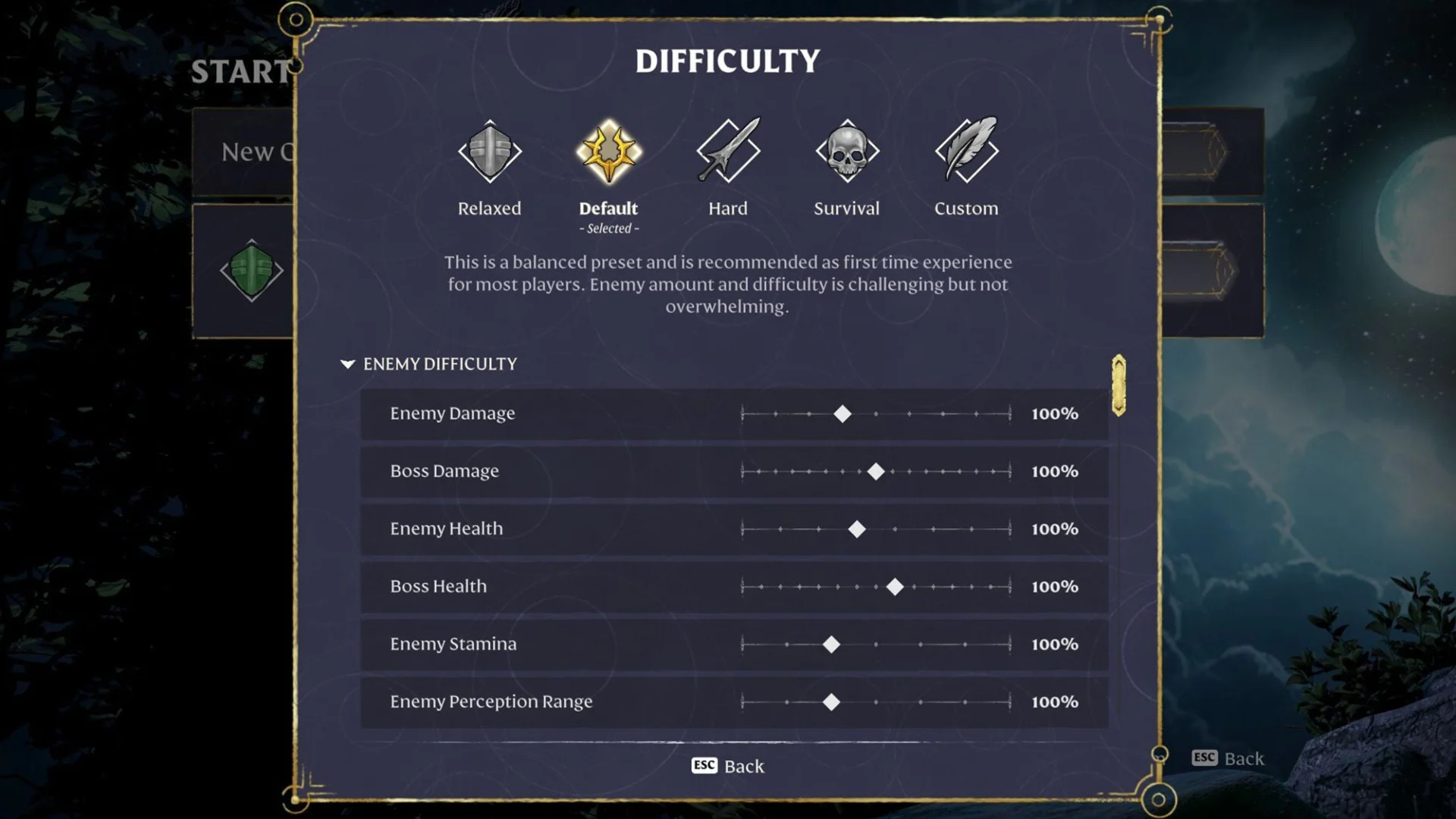
For a first playthrough, we recommend Default. It lets you learn the normal combat balance, progression rate, and resource economy before changing individual systems. The other presets adjust several parts of the game at once:
| Playstyle | Recommended Starting Point | Important Effect |
|---|---|---|
| First playthrough | Default | Standard combat, progression, and resource values |
| Story, exploration, and building | Relaxed | Easier fights plus faster gathering and building |
| Challenging solo combat | Hard with Custom adjustments | Hard otherwise halves combat and mining XP |
| Co-op | Default | Tune death penalties, regular enemies, and bosses separately |
| Full survival experience | Survival | Hunger, longer nights, fewer resources, and losing everything on death |
Relaxed reduces the damage and health of regular enemies and bosses to 50 percent. Your health, mana, and stamina rise to 200 percent, while combat XP increases to 150 percent. Weapon durability is disabled, time in the Shroud increases to 150 percent, and you keep everything when you die.
Hard raises enemy damage to 125 percent and boss health to 150 percent. However, it also cuts combat and mining XP to 50 percent. The preset therefore makes a playthrough both harder and slower, even though player health, mana, and stamina remain at their Default values.
Survival pushes further, combining 150 percent enemy damage and 150 percent boss health with only 75 percent player health. It also enables hunger, extends nights from 12 to 20 minutes, and makes you lose everything you are carrying when you die. Combat and mining XP are reduced to 50 percent as well.
How to Open and Activate World Settings
- From the main menu, select Play, followed by Start a Session.
- Select the world you want to change and open Edit.
- Open Compare to view the ENEMIES, PLAYER, SURVIVAL, and RESOURCES tabs.
- Select a preset or, on PC, press F to open the Custom column. The documented PC controls use Q and E to switch tabs.
- Confirm that the intended column displays “- Selected -”. Custom must be selected for your individual values to take effect.
Difficulty is saved separately for each world, and you can return to the Edit screen to change it later. On PS5, follow the actions shown in the menu rather than the PC keys listed above. You can also verify the active difficulty on the world card or Edit screen.
The Presets Change More Than Combat
Relaxed also reshapes the resource economy. Workstation production and plant growth run at 200 percent, while mining effectiveness and resource gains rise to 150 percent. Weapon upgrades cost half as much, and both glider turbulence and the Fell Curse are disabled.
Hard leaves resource gains and workstation speed at Default, but reduces diving time and food buff duration to 90 percent. Survival lowers mining effectiveness and resource gains to 75 percent, shortens food buffs to 70 percent, and reduces the recycling yield from equipment upgrades to 30 percent. Its Hungry State Duration is ten minutes before starvation takes effect.
Quest and exploration XP, daytime length, and the Flame level required to place Flame Altars in the Shroud remain unchanged across the four fixed presets. Custom lets you alter these values too. The required Flame level is 11 in every fixed preset but can be set from 1 to 11 in Custom.
Enemies, Bosses, XP, and Resources Use Separate Controls
The regular Enemy Damage and Enemy Health settings do not affect bosses. Bosses have their own Boss Damage Modifier and Boss Health Modifier. If only boss fights feel too long, gradually lower boss health instead of changing the health of every regular enemy.
Progression is divided in a similar way. Combat Experience Modifier and Mining Experience Modifier are separate settings, and Hard and Survival reduce both to 50 percent. Exploration XP remains at 100 percent in the fixed presets.
Resources Gain Modifier and Mining Effectiveness also solve different problems. The first increases how many materials you receive, while the second changes how effectively you mine. Check both if you want faster extraction and a larger haul.
Tombstone Mode determines whether you lose materials, everything, or nothing when you die, independently of combat difficulty. Enemy Amount controls how many enemies appear; Automatic accounts for group play, but it does not replace the separate damage, health, or boss controls.
Recommended Custom Setups Without Unnecessary Grind
The following combinations are practical recommendations based on what each control changes. They are not additional presets included with the game.
Tough Solo Combat With Normal Progression
Start with Hard, then return Combat Experience Modifier and Mining Experience Modifier to 100 percent in Custom. This preserves effects such as 125 percent enemy damage and 150 percent boss health without limiting you to half the normal combat and mining XP.
Faster Building With Default Combat
Keep combat values at Default and copy the economic values from Relaxed: set plant growth and workstation speed to 200 percent, resource gains and mining effectiveness to 150 percent, Shroud time to 150 percent, and weapon upgrade costs to 50 percent. Once the economy suits your project, our guide to the best base locations in Enshrouded can help you choose where to build.
Co-Op for Players With Different Experience Levels
Begin with Default and agree on Tombstone Mode with your group first. If individual hits are too punishing for less experienced group members, reduce Enemy Damage. This makes each hit more forgiving without automatically shortening every encounter. If only bosses drag on, lower Boss Health separately.
Survival With Hunger but Without Total Loss
Enable hunger in Custom, but leave Tombstone Mode on “lose materials only.” XP rates, night length, and resource values can remain at Default. This adds survival pressure without making every death cost your entire backpack.
What to Check When a Setting Does Not Work
- The wrong difficulty is active: Reopen Edit and check for “- Selected -.” Individual values only work while Custom is selected.
- Bosses have not changed: Check Boss Damage and Boss Health instead of the regular enemy controls.
- Leveling feels too slow on Hard or Survival: Raise combat and mining XP from 50 to 100 percent if you want the normal progression rate.
- Gathering is still tedious: Check resource gains and mining effectiveness separately. Survival sets both to 75 percent.
- The settings cannot be configured at all: Update Enshrouded to at least Hotfix 1.0.0.2 or a newer version. That hotfix corrected the world-settings problem found in early 1.0 installations.
Before making major changes to an existing world, you can also back up your Enshrouded save. The presets and controls described here cover Enshrouded 1.0 on PC and PlayStation 5. The announced Xbox Series X|S version, scheduled for 2027, is outside this guide’s current scope.
0 comments
No comments yet. Start the discussion.
Create an account to comment
Sign in or create a free Guided account to join the discussion.