


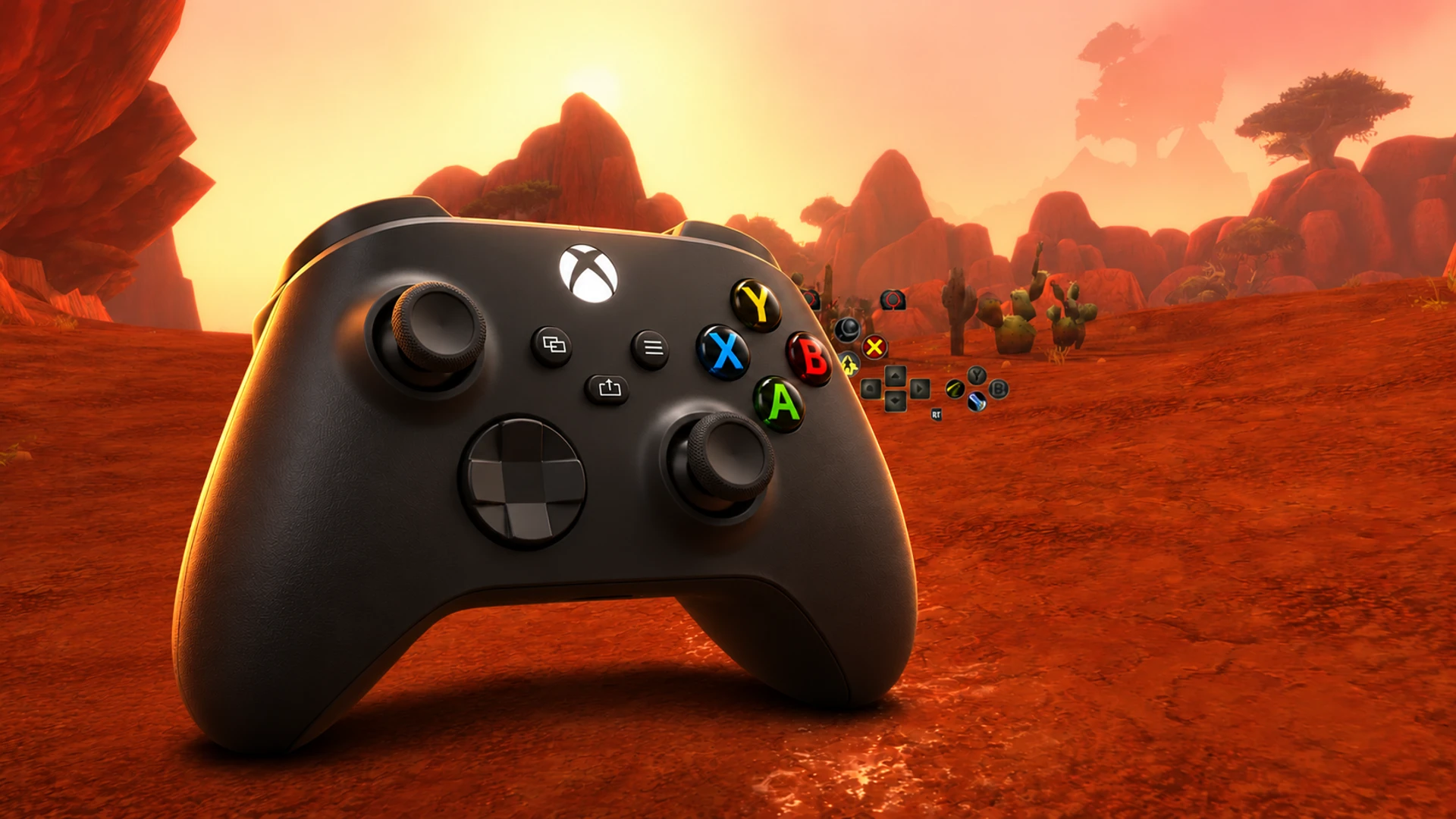


WoW Forever’s controller support lets you handle combat and menus from a gamepad, but setting it up differs from playing with a keyboard and mouse. This guide explains how to configure the controls, organize your abilities, select targets, and reach important HUD panels—and where a keyboard remains necessary.
Blizzard’s new official gamepad guide details three switchable action-bar sets with 84 customizable slots in total. Controller support remains a functional beta while Blizzard continues improving the interface.
Controller Compatibility and Setup
WoW Forever supports XInput-compatible controllers. The interface includes both Xbox and PlayStation button icons, although Blizzard describes its control layout with Xbox labels. The shortcuts below therefore use A, B, X, and Y along with LB, RB, LT, and RT.
To enable controller input, press Escape to open the Game Menu, then select Options, Gameplay, and Gamepad. The available settings include the camera, HUD modifier, focus frame style, action bars, targeting, and raid targeting. Start with a layout that makes movement, target selection, and your most important abilities comfortable, then adjust it as your available spells or playstyle change.
How the 84 Action Slots Are Organized
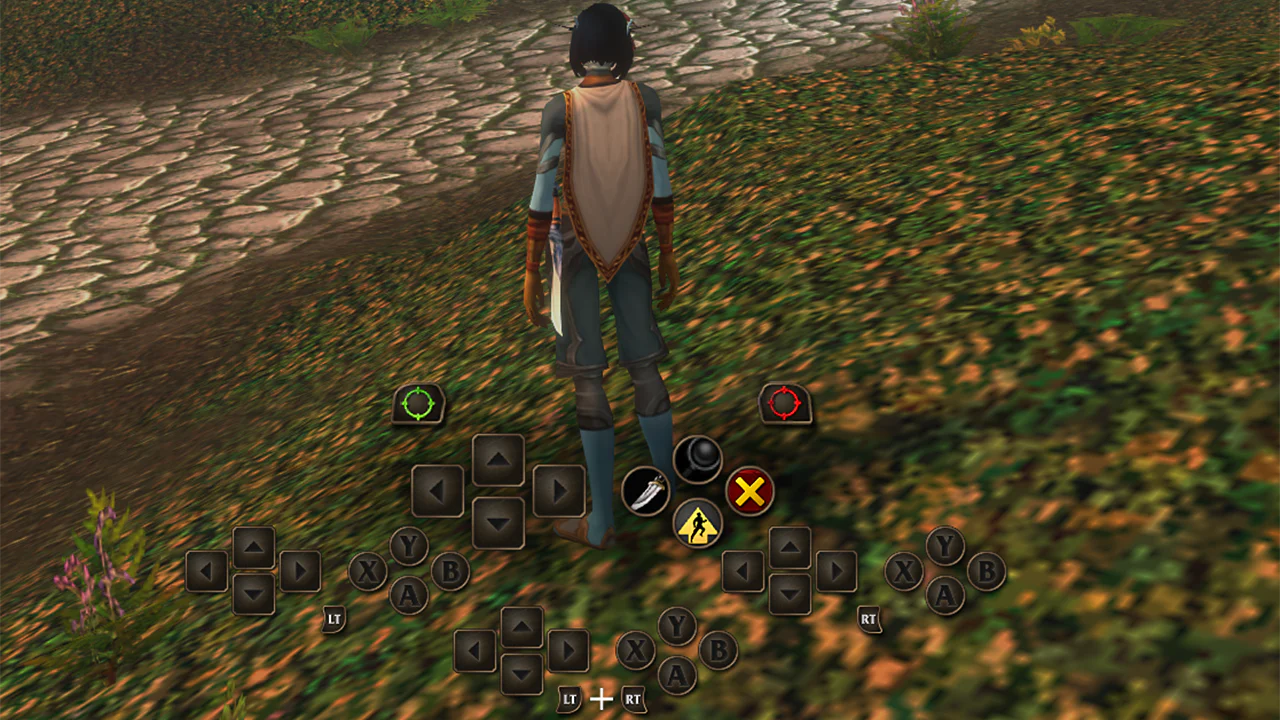
The gamepad HUD displays four action bars within each set. You use the default bar without holding a trigger. Holding LT, RT, or both triggers switches to one of the other three bars, while releasing them returns you to the default. The HUD updates to show the abilities on the active bar.
Those four bars provide 28 slots per set. You can create three sets for a total of 84 customizable spell and ability slots. To move between sets, hold LB and RB, then press left or right on the D-pad.
You could use separate sets for combat, utility abilities, and other frequently needed actions. The button positions remain consistent when you change sets, so you do not have to learn an entirely different control pattern each time. Keep your most important abilities within easy reach when assigning the slots.
Movement and Target Selection
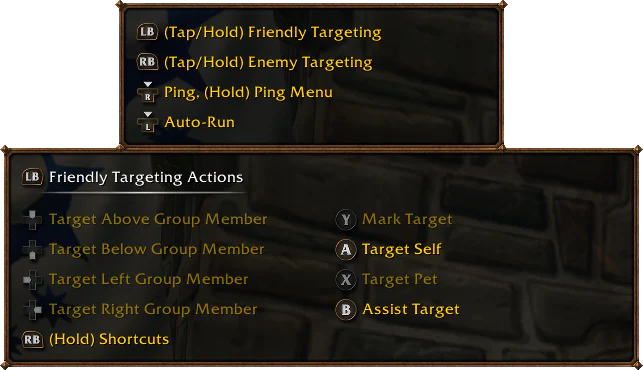
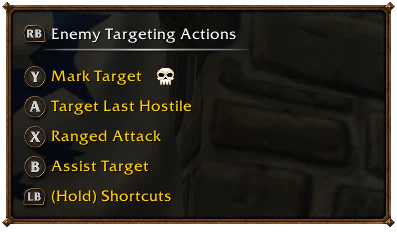
The left stick moves your character, while the right stick controls the camera. LB selects a friendly target and RB selects a hostile one, allowing you to move between allies and enemies during group content.
The basic layout assigns Interact to X, Jump to A, Back to B, and Inspect to Y. These buttons can also activate abilities during combat. The Menu button opens the Main Menu, while the View button—the one marked by overlapping squares—changes the focus frame.
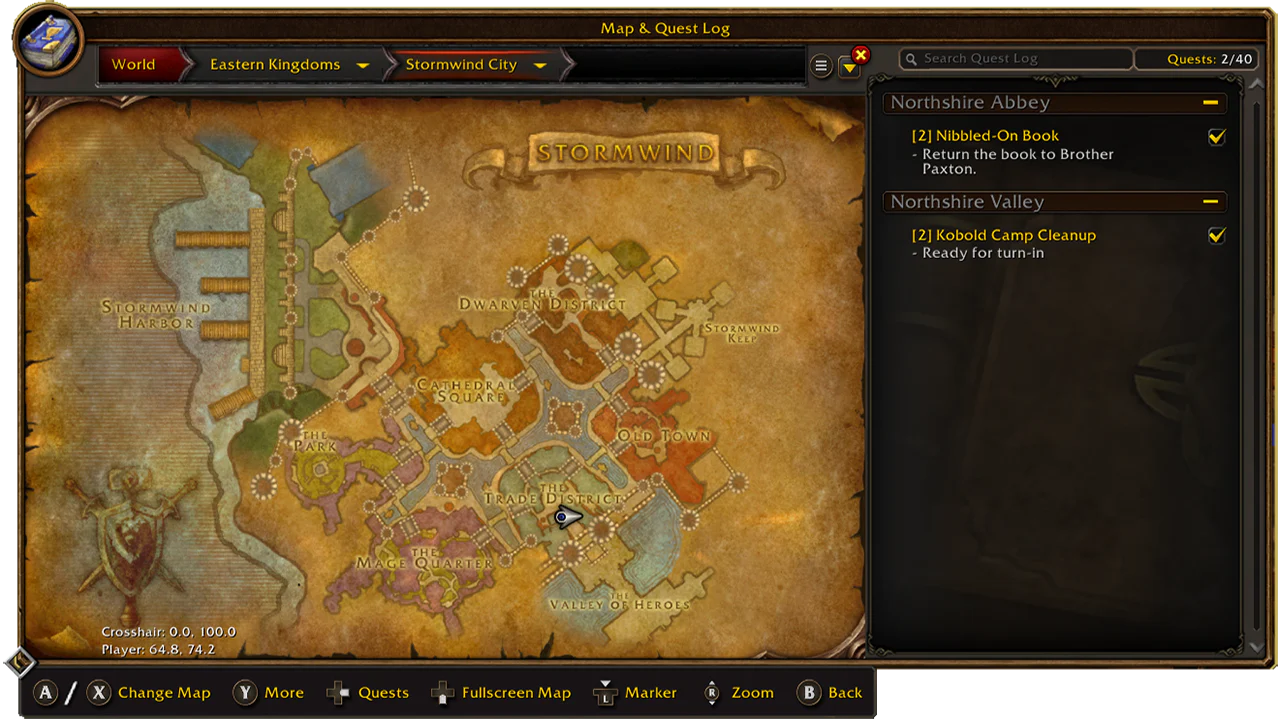
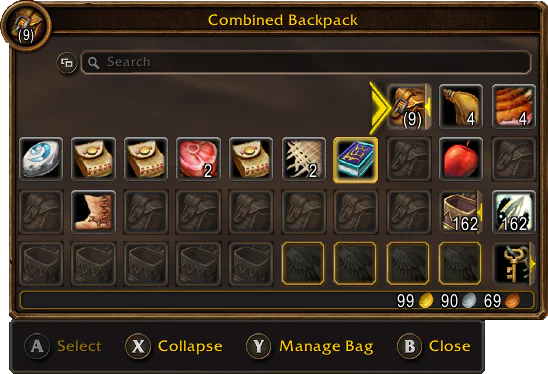
A controller legend in the upper-left corner of the main screen displays available actions and expands in certain situations to show more options. Many interface panels also display their controller commands along the bottom. Because gamepad support remains in beta, Blizzard says these prompts are not yet available on every screen.
Shortcuts for Your Backpack, Quests, Chat, and Buffs
Hold LB and RB together, then use these shortcuts to open frequently used HUD panels:
- LB + RB + B: Open your backpack
- LB + RB + D-pad Up: Open the quest tracker
- LB + RB + D-pad Down: Open chat
- LB + RB + Y: Manage buffs
You can also reach these panels through the main radial menu. The shortcuts reduce the number of menus you need to navigate, but they do not remove every limitation of the current controller interface.
Why You Still Need a Keyboard
You can open chat with the controller, but entering a message still requires a keyboard. Blizzard describes gamepad support as a functional beta and plans to reduce the need for keyboard input further. Fully keyboard-free play remains a development goal rather than a current feature.
If you plan to play WoW Forever with a gamepad, keep a keyboard nearby for chat. For a broader look at changes to classes, action bars, bags, and controller support, see our overview of the changes arriving for launch. You can also read how earlier controller features developed in our report on the major beta update for classes and the interface.

0 comments
No comments yet. Start the discussion.
Create an account to comment
Sign in or create a free Guided account to join the discussion.