



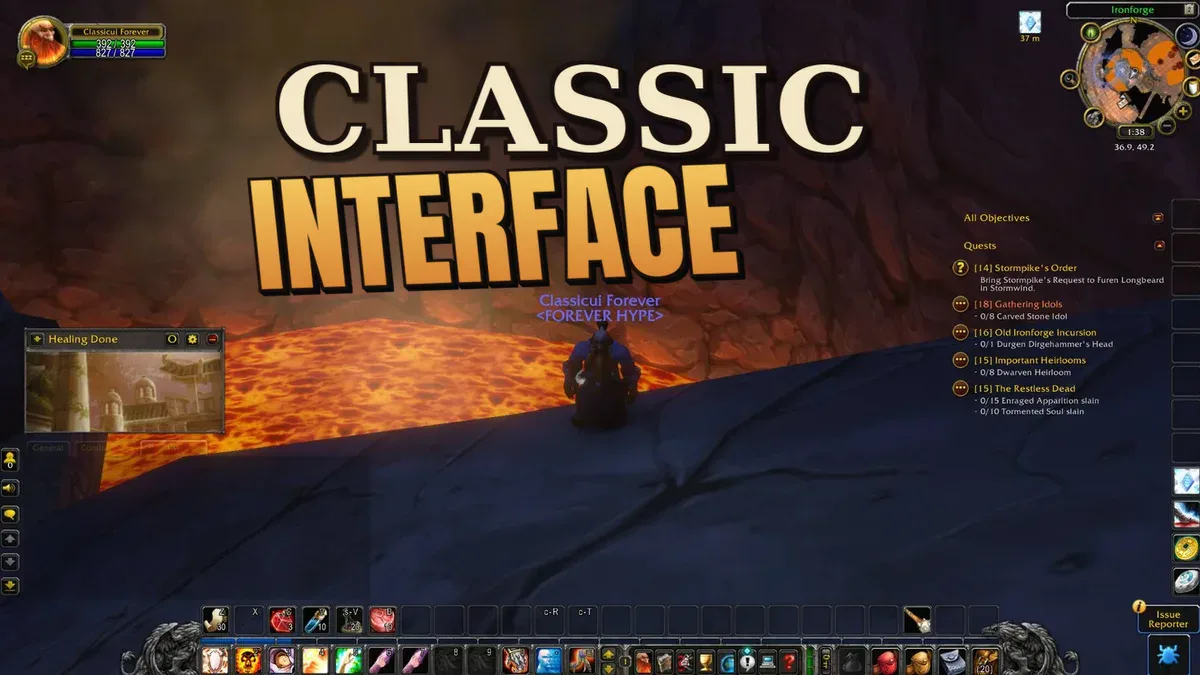


ClassicUI Forever restores the familiar look of early WoW interfaces without forcing you to give up every convenience in World of Warcraft: Forever. This guide shows you how to protect your existing layout, choose individual classic modules, and build a mixed interface that remains practical.
The Classic Preset and ClassicUI Forever Are Different
WoW Forever’s built-in Classic Experience Preset is a starting package of game settings and a Classic screen UI layout. ClassicUI Forever is a separate add-on that replaces selected bars, unit frames, and windows with 1.x-style artwork.
For a blend of classic visuals and modern convenience, begin with Enhanced or keep the individual settings you already prefer. Enhanced starts with features such as quest markers, One-bag, Transmog, and the Centralized screen UI layout. ClassicUI Forever can then restyle only the interface areas you choose. Disabling one of its modules returns that area to the Forever interface.
Choose the Correct Add-On and File
The correct listing is named ClassicUI Forever (Classic UI for Forever AND Retail). It appears under fallenguard, names justawower in its manifest, and uses project ID 1700043. Select the newest file specifically labeled for Forever; a Retail, Classic Era, or similarly named add-on file is not an equivalent replacement.
If you need help with CurseForge, ZIP installation, the correct client folder, or an add-on that does not appear in the game, follow our WoW Forever add-on installation guide.
Keep Your Existing Layout on the First Launch
ClassicUI Forever offers an optional Classic layout when you first log in. If you want to preserve your current arrangement, decline that layout for now. Your existing layout and key bindings remain available, and you can open the add-on settings with /fcui.
Save your initial module selection on the Profiles page before continuing. To back up or transfer that setup, use Export to copy its one-line profile string. Import creates a new profile from that string and switches the current character to it. You can show the layout prompt again later with /fcui prompt. The command /fcui layout creates and selects a fresh classic layout instead. If the add-on also offers to change the UI scale, choose the option that retains your current scale when you only want different artwork.
Recommended Mixed Setup
The following starting configuration restores the most recognizable classic elements while leaving useful Forever systems in place:
- Enable Classic bar for the stone artwork, gryphons, action slots, page controls, micro menu, bags, and experience bar.
- Under Unit frames, initially enable Player, Target, and Boss. Target also includes the target-of-target frame, while Boss applies classic artwork to dungeon and raid boss frames.
- Leave Party disabled if you prefer Forever’s modern party display. This is a useful starting point for healers who want classic personal frames without replacing their group display.
- Enable Spellbook for the paged parchment book and Quest log for the add-on’s 1.x-style quest window.
- Under the quest options, keep Game objective tracker selected. This preserves modern objective tracking while the Quest log uses classic artwork.
- Enable One bag if you want all bags combined into one window with older-style artwork. This corresponds to the game’s Combine Bags setting.
Check the micro menu immediately afterward. Group Finder, Professions, Collections, and Legacy buttons should remain available if you use them. If one is missing, remove it from the add-on’s hidden micro-button selection or enable its minimap icon.
Add further classic modules one at a time. That makes it much easier to identify which setting changed a specific window, tracker, or bar.
Understand Module Dependencies
Sub-options require their parent module. Player and Target belong to Unit frames; bag-column options depend on One bag; and alternate quest views depend on Quest log. Disabling the parent module leaves that interface area to WoW Forever or another add-on.
Use either the full ClassicUI Forever suite or one of its standalone packages, never both together. If you want several classic areas, use the full suite and disable the components that another add-on should control. For example, you can keep a different group-frame add-on while still using ClassicUI Forever’s Spellbook.
If you use a general window-moving add-on, ClassicUI Forever can leave ordinary game windows under that add-on’s control. Its custom Spellbook and Quest log still use their own locks and positioning controls.
Move and Resize ClassicUI Windows
Make these changes outside combat. Move your pointer over a ClassicUI window’s title bar, unlock it, and drag the title bar to reposition the window. Use the handle in the lower corner to resize it. Right-clicking that handle restores the window’s default size.
The red control beside the lock resets only the current window’s position. The global window reset in ClassicUI Forever’s options restores every managed window position and size instead, so do not use it when you only need to fix one misplaced panel.
Action bars, unit frames, gryphons, the micro menu, and other HUD elements can also be arranged through Edit Mode. Generic window-moving add-ons may not recognize ClassicUI Forever’s custom Spellbook or Quest log; move those with their title-bar locks or the ClassicUI section in Edit Mode.
Reset One Module or the Entire Classic Look
Disable an individual module when only that area should return to the Forever appearance. Toggle none switches off the classic components on the current settings page, while applying that action across every page removes the complete classic look without disabling the add-on itself.
Default toggles does not mean WoW Forever’s default interface. It restores the checkboxes and values chosen as ClassicUI Forever’s classic defaults. Your Edit Mode layouts are not changed.
Classic layout creates or activates the add-on’s dedicated Edit Mode layout. If that layout is already active, the same control resets it to its classic arrangement; other saved layouts remain available. Deleting a ClassicUI Forever profile moves characters assigned to it back to the add-on’s Default profile.
To restore the complete Forever appearance, switch off all classic modules or disable ClassicUI Forever in the add-on list. Disabling the add-on does not automatically delete its saved account-wide and character-specific configuration.
Fix Missing Bars and Add-On Conflicts
- The Classic bar is missing: Check whether another add-on controls your action bars. Disable that add-on’s bar module, or intentionally leave this area under its control. ClassicUI Forever retains its selected bar settings.
- Only one interface area looks wrong: Disable only the corresponding ClassicUI Forever module first. Each screen area should be controlled by one restyling add-on.
- The Spellbook or Quest log will not move: These are custom ClassicUI Forever windows. Use the lock on their title bars or their ClassicUI controls in Edit Mode.
- A change is only partly applied: Run
/reload. Some module, language, and gamepad changes require a UI reload, which the add-on may defer while you are in combat. - The entire add-on is absent: Check the Forever file, installation folder, and dependencies with the linked installation guide.
- The problem persists: Open
/fcui status, copy the Status report, and note your version, changed settings, and other enabled add-ons. For a conflict check, try one login with only ClassicUI Forever enabled.
With a gamepad enabled, reloading makes ClassicUI Forever use the game’s controller-navigable Spellbook, Talents, and Quest Log. After disabling the gamepad, another /reload restores the classic variants. WoW Forever currently labels this feature Gamepad (Alpha).
Verify the Finished Setup
- Select a target. The Player and Target frames should use classic artwork while any deliberately excluded Party frames remain modern.
- Open the Spellbook and Quest log. Track a quest and confirm that the Game objective tracker still appears.
- Open all bags and check whether One bag combines them as intended.
- Confirm that every required micro button—especially Group Finder, Professions, Collections, and Legacy—is visible.
- Open Edit Mode and make sure no bar covers your chat, bags, or unit frames.
- Run
/reload, log back in, and repeat the checks so changes that require a reload are included.
This guide applies to the WoW Forever desktop client on Windows and Mac. Although the project also supports Retail, its Forever-specific windows and steps are not guaranteed to behave identically there. Classic Era, Season of Discovery, and private servers are outside this setup’s scope.
Once the interface is arranged, you can adjust lighting, grass, and image settings separately with our WoW Forever graphics guide.

0 comments
No comments yet. Start the discussion.
Create an account to comment
Sign in or create a free Guided account to join the discussion.